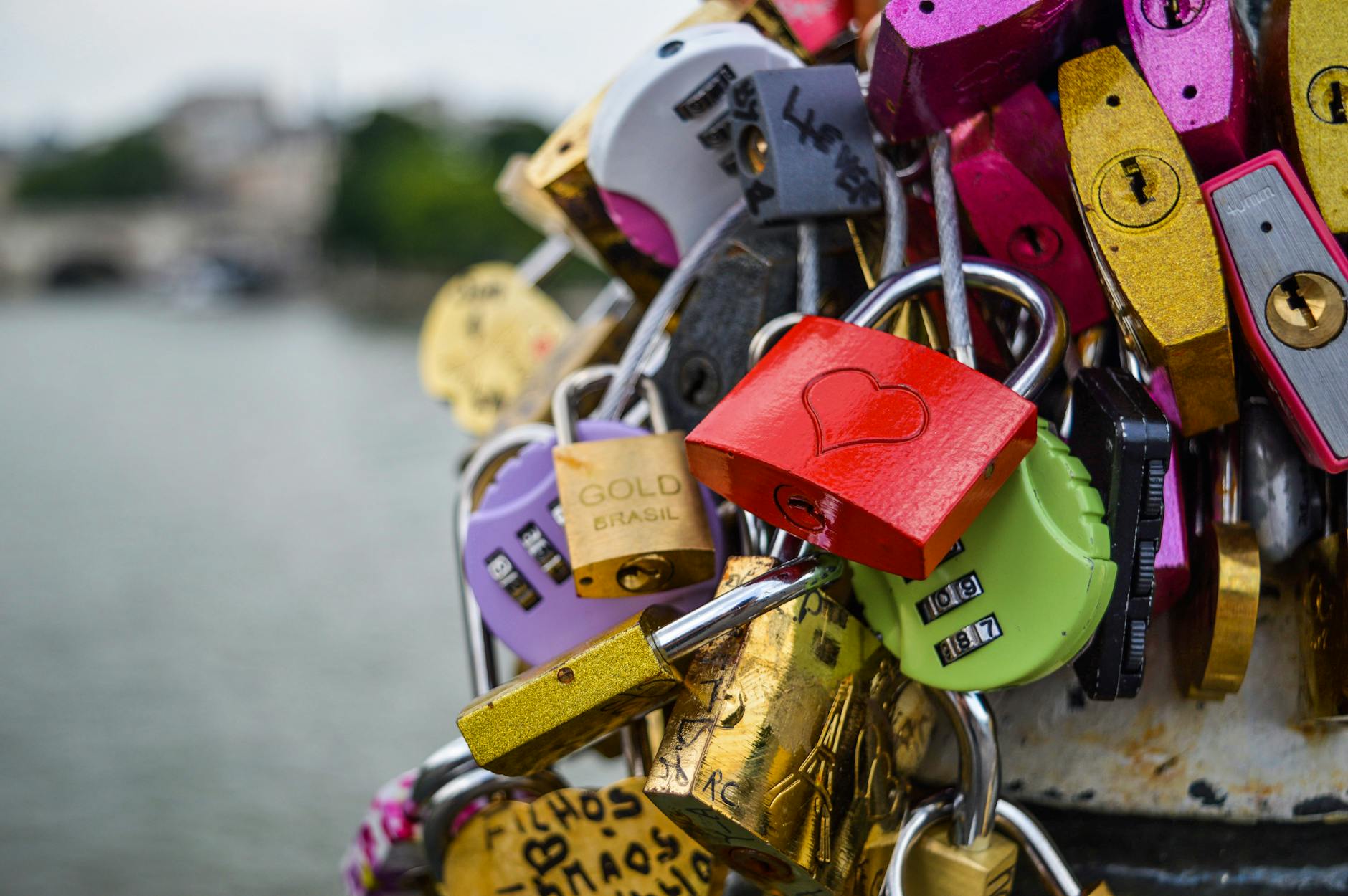
If you do nothing else to organise your estate and prepare for an emergency, you should set up (or tidy up) a password manager.
Password security, like “getting healthy,” is one of those things that we all put off even though we want to do better. And in the meantime, we reuse the same passwords across dozens of sites or keep a notebook full of outdated passwords with the most used ones memorised and never noted at all.
It’s terribly insecure and we know it, but managing unique passwords for every account feels impossible.
That impossible feeling is exactly what password managers solve.
What Is a Password Manager?
A password manager is a digital tool that stores all your passwords behind one master password. Instead of remembering dozens of passwords, you only need to know one. The software handles everything else—generating strong passwords, saving them in an encrypted vault, filling them in automatically, and keeping them synced across your devices.
I use Bitwarden, but there are excellent alternatives like 1Password, Dashlane, and Keeper. Even LastPass remains popular despite some past security concerns.
Built-In vs. Standalone: What’s the Difference?
You have probably noticed that your browser and operating system offer basic password management. Chrome, Safari, and Windows all save passwords and sync them across devices. So why use something separate?
Built-in (Chrome, Safari, iCloud Keychain, Windows):
- Pros: Free, already installed, seamless integration, no extra apps needed
- Cons: Locked to one app or OS, fewer security features, limited sharing options, basic organization, no emergency access planning
Standalone (Bitwarden, 1Password, etc.):
- Pros: Work across all browsers and devices, advanced security features, better organization, secure sharing, emergency access options, often include 2FA storage
- Cons: Cost money (usually), require separate installation, slight learning curve
The built-in options work fine if you’re fully committed to one ecosystem—say, all Apple devices. But if you use Windows at work, an Android phone, and sometimes Firefox, a standalone manager makes life much easier.
The Tedious Part (there’s always one)
Setting up a password manager for the first time is a lot of little steps and a few big ones. You’ll need to:
- Install the app and browser extensions
- Create a strong master password or passphrase
- Add existing passwords for all your accounts (import them or or add them manually)
- Update weak passwords to strong, unique ones
- Enable two-factor authentication on the manager itself
- Set up emergency access (more on this below)
This might take an afternoon to get started. Maybe a weekend if you’re thorough. Steps 3 & 4 are the real grind. If you are adding passwords manually, do the frequently used accounts first and then dribble the rest in as you encounter them.
Even though its a pain, you do this once. After the initial investment, your digital life gets easier and more secure.
The Daily Benefits
Once set up, a password manager becomes invisible in the best way:
Autofill: Click a login field, select your credentials, done. No more hunting for that password you definitely wrote down somewhere.
Password generation: Need a new account? Your manager creates a random password instantly. You’ll never even see it—just save it and move on.
Two-factor authentication (2FA): Many managers, including Bitwarden, can store your 2FA codes alongside passwords. Security purists will say this reduces the “two-factor” benefit slightly, but for most of us, having 2FA at all is the important part. And it’s far more convenient than juggling a separate authenticator app.
Cross-device sync: Start login on your phone, finish on your laptop. Everything stays current automatically.
Secure sharing: Need to share your Netflix login with family? Or give your assistant access to work accounts? Standalone managers let you share credentials securely without sending passwords over email or text.
Security audit: Most managers will analyze your vault and warn you about weak, reused, or compromised passwords. Bitwarden does this beautifully and seeing all your security weak spots listed out is surprisingly motivating.

Sharing in an Emergency
My mother’s missing passwords were one of the things that made me create the Ending Note. We lost access to all of her digital accounts because her passwords were unavailable to us. It made everything harder when she died.
Whether your passwords only exist in your head, or in a password manager behind a passphrase you haven’t shared at all, you’ve just created a nightmare for the people you love.
Password managers are essential estate planning tools, not just security conveniences. But how do you balance your account privacy with sharing passwords in an emergency?
Emergency Access Features
Many standalone password managers include emergency access options:
Bitwarden: You can designate trusted contacts who can request emergency access. After a waiting period you set (24 hours, 7 days, etc.), they automatically gain access unless you deny the request. This means if you’re incapacitated, your designated person eventually gets in—but if someone tries fraudulently, you have time to block them.
1Password: Offers similar emergency access features, plus their “Travel Mode” that temporarily removes sensitive vaults when crossing borders. That’s very handy in today’s complicated international climate.
Dashlane: Includes emergency contact features with customizable waiting periods.
These features solve the problem elegantly: your accounts stay secure during your lifetime, but there’s a clear succession plan.
Sharing Your Master Password: When and How
The master password is the key to everything, so sharing it requires thought. Here are some strategies:
Don’t share it… yet: For most of your life, you shouldn’t share your master password with anyone. Use the emergency access features instead. This keeps you secure while ensuring help is available if needed.
When to share:
- Terminal illness or advanced age when cognitive decline is possible
- Before major surgery or risky travel
- When explicitly planning your estate distribution
Three ways to share securely:
- Write it down and seal it up in an envelope to add a layer of physical security. If the seal is broken, you can tell that some’s seen the master password.
- Store it safely with your Ending Note, will, and other important documents. Use a safety deposit box, safe, or other secure location.
- Split the password using Shamir’s Secret Sharing (advanced, but some families do this—requires 2 of 3 people to combine their parts)
- Use your password manager’s built-in emergency access and document that process in your Ending Note.
Do NOT share:
- Via email, text, or messaging apps (never-ever!)
- With people you don’t trust completely with your entire digital life
- Without also documenting which accounts are most critical for your survivors (see the next post in this series)
Your Digital Legacy
In The International Resident’s Ending Note, there’s a whole section on digital assets because this matters more than people realize. Your password manager becomes the master key to:
- Financial accounts your executor needs to settle your estate
- Photo libraries your family wants to preserve
- Social media accounts that need to be memorialized or closed
- Subscription services that keep charging if not canceled
- Cloud storage with important documents
- Email accounts with years of correspondence
Having all this organized in one secure place—with a clear succession plan—transforms what could be a months-long nightmare into a manageable process.
Think about it: would your spouse know how to access your email right now? Your banking app? That investment account you opened years ago? If the answer is “probably not,” you need a password manager with emergency access configured.
Is Cloud Storage Safe?
Standalone password managers typically store your encrypted vault in the cloud. This makes some people nervous, which is understandable. But here’s what actually happens:
Your vault is encrypted on your device before it ever reaches the cloud. The company never has access to your master password or unencrypted data. They’re storing gibberish without the key. Even if their servers were compromised, your passwords remain protected by your master password’s encryption.
That said, if you’re uncomfortable with any cloud storage, Bitwarden offers self-hosting options, and some managers like KeePass are entirely local.
I Really Mean This
I’ve been online since 1989. In 2015, after literal decades of password sloppiness, I finally started using Bitwarden. It was one of those “why didn’t I do this sooner?” moments. The setup was annoying, for sure. But now I have strong, unique passwords for every account, 2FA is enabled, and I never think about passwords anymore.
More importantly, I’ve designated emergency contacts, documented the process in my Ending Note, and know that if something happens to me, my family won’t be locked out of critical accounts during an already difficult time.
If you’re still using “Fluffy2020!” for half your accounts, just pick a manager—Bitwarden if you want free and excellent, 1Password if you want premium features and polish—and commit a weekend to setting it up properly. While you’re at it, set up emergency access. Your future self will thank you.
And your family definitely will.